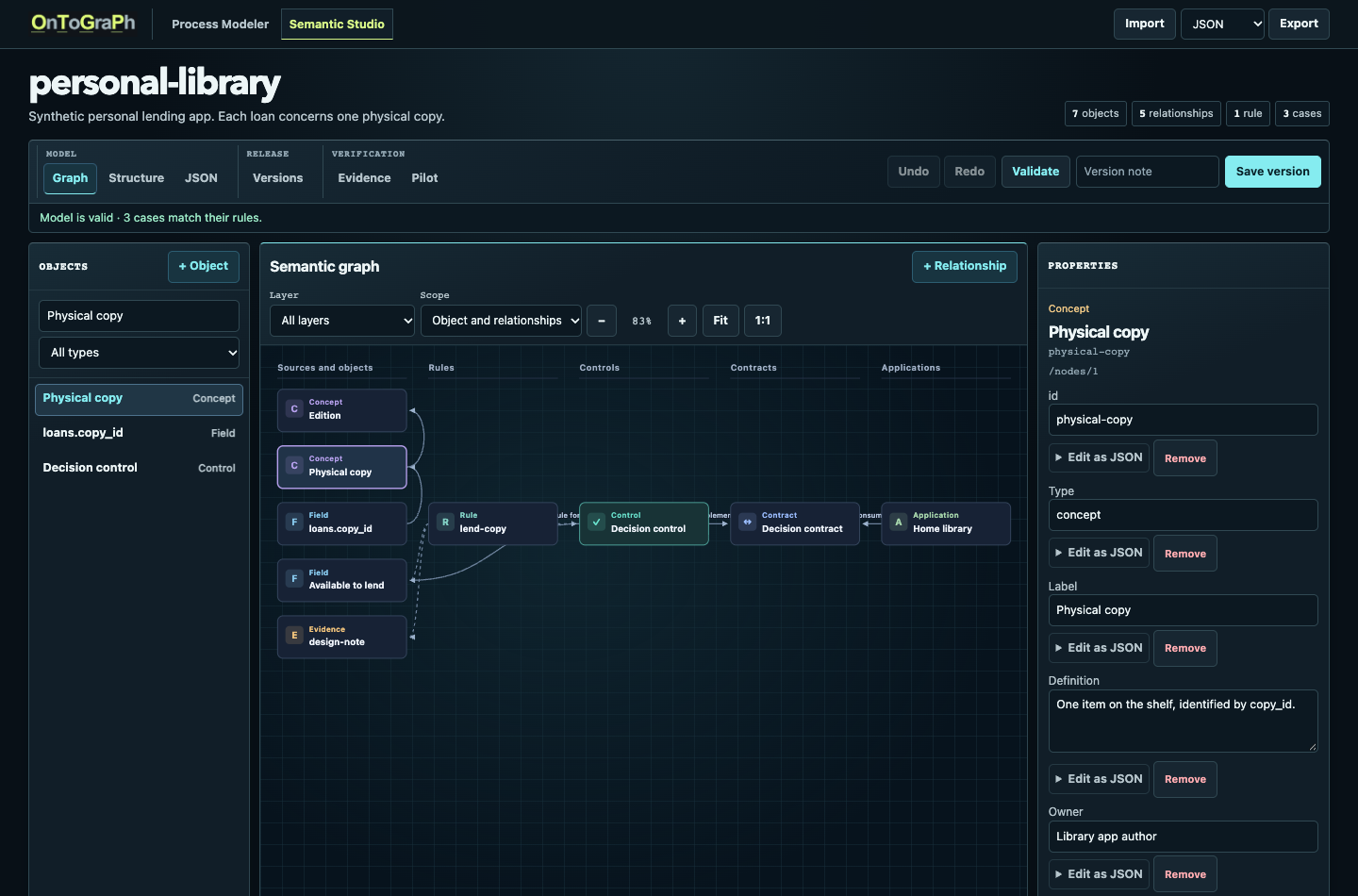
Start with a decision your software needs to make. Which physical copy can I lend? What does the WBS column in this export identify? Model the smallest set of terms, relationships and checks needed to answer that question. The architecture puzzle explores alternative stacks. You edit the actual model in Semantic Studio.
With Git and Python 3.10 or later installed, clone the repository once and start Studio. If you already have a checkout, run the last command from its root.
git clone https://github.com/sev7enITA/OntoGraph.git
cd OntoGraph
python3 -m ontograph studio
If you downloaded the offline package, copy the two JSON files and
the CSV file into examples/adoption/ in your checkout.
Create the directory if needed.
Open Semantic Studio.
The root opens the Process Modeler, where Semantic
Studio takes you to the same place. Select
Import and choose personal-library.json or department-wbs.json. In
Graph, search for an object, select it and inspect its
definition, owner, aliases and relationships. Use +
Object to add a concept or a field and +
Relationship to map a field to a concept with
mapsTo. Validate checks model structure
and expected test cases. Save version keeps a working
copy in this browser. Export → JSON saves the portable
model with rules and tests. Use Versions to compare
edits.
copy_id for each item. The loan
screen selects a copy. Search for copy-id in the example to
see where the loan field points.lend-copy. It permits the loan when the selected
copy’s available fact is true. The three probes cover an
available copy, one already on loan, and missing availability. The last
two return hold. Your application reads the availability
from its own records.physical-copy to “Shelf copy”, keep the
ID, validate and export JSON. Point the snippet at your exported file.
The form label changes while the loan rule still uses
available. Use JSON-LD export for a graph consumer. The
release JSON carries the rules and probes used below.import json
from pathlib import Path
from ontograph.model import evaluate, validate
model = validate(json.loads(Path("examples/adoption/personal-library.json").read_text()))
nodes = {node["id"]: node for node in model["nodes"]}
print(nodes["physical-copy"]["label"])
rule = next(rule for rule in model["rules"] if rule["id"] == "lend-copy")
for copy_id, available in [("COPY-01", True), ("COPY-02", False)]:
print(copy_id, evaluate(rule, {"available": available}))The same column heading and even the same value can identify
different things. These three sample rows are fictional local
conventions. Read 0017 as text.
| Source and custodian | Incoming field and value | Meaning in this model | Stable concept ID |
|---|---|---|---|
| PMO scheduler | schedule.csv / WBS / 0017 | A work breakdown structure element in the project schedule | project-work-package |
| Finance ERP | ledger.csv / WBS / 0017 | The account assignment object that receives a posting | posting-object |
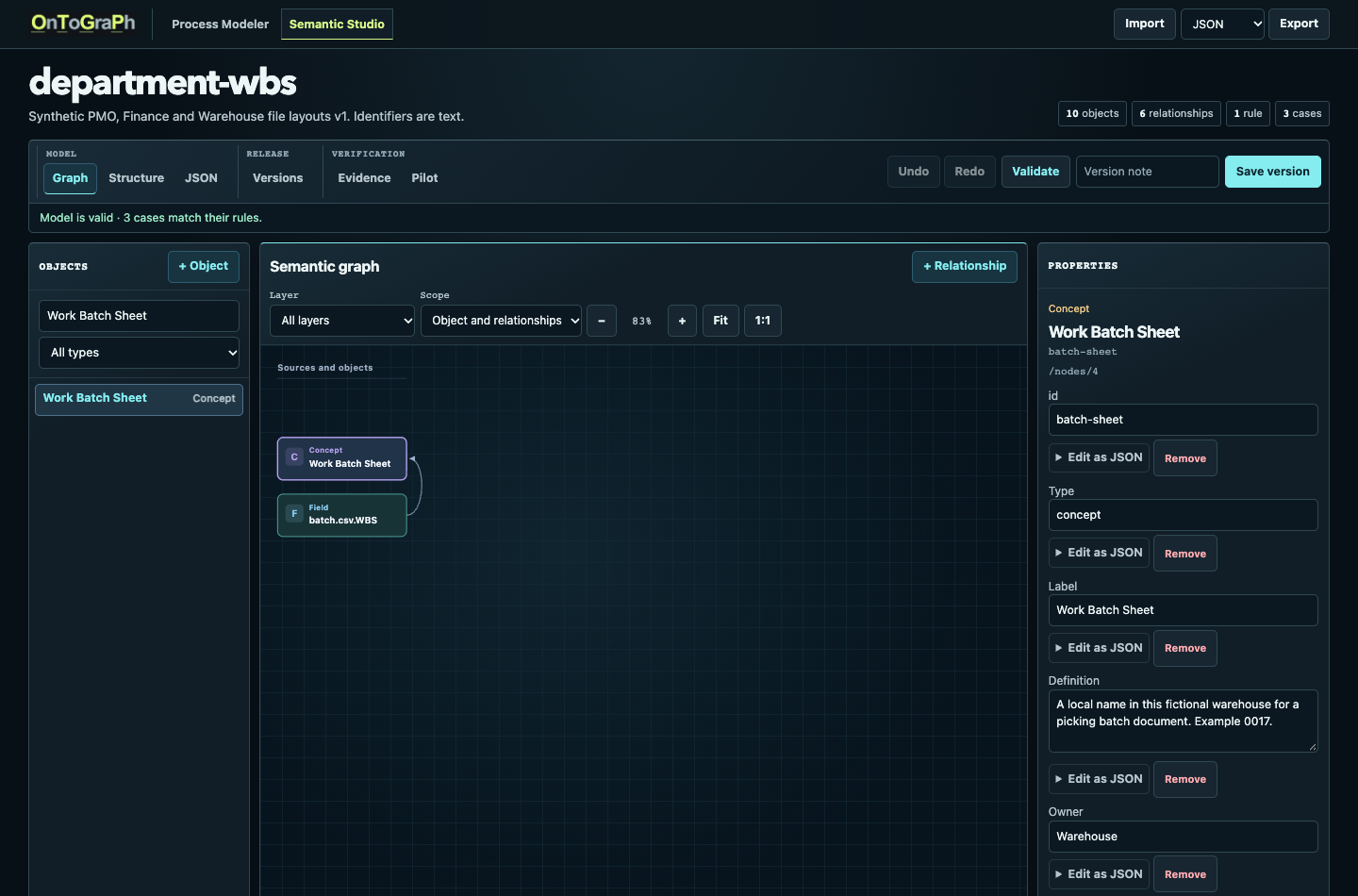
| Warehouse application | batch.csv / WBS / 0017 | A picking document called a Work Batch Sheet in this warehouse | batch-sheet |
mapsTo relationship. Mapping a
field to its concept answers “what does this column mean?” Matching a
particular work package to a Finance object requires a business
crosswalk with the project, local keys, effective dates, cardinality and
approving owners. A package may fund several posting objects. Keep these
two decisions separate.PMO / schedule.csv / WBS / 0017
yields project-work-package / 0017. A file from an unknown
system with only WBS=0017 goes to review. A missing or
ambiguous business crosswalk also goes to review whenever the target
needs an instance-level join.resolved for semantic staging. The sample rule
admit-row returns allow for true and
hold for false or missing. It does not parse a vendor file
or verify a join. The receiving application’s import receipt and an
independent readback establish which records actually arrived.File formats. The operational CSV/XLSX goes to your staging job. Studio imports a release JSON or an OnToGraPh semantic workbook. Use its Export → Excel to get the editable workbook with Path, Type and Value columns. Validate checks the model. Business data, ETL schedules, crosswalk approvals and receiver readbacks belong to the organization’s integration process.
A SharePoint list is one practical publication route. The steward publishes a readable projection of the approved dictionary, and an authenticated Copilot agent uses that list as knowledge. This is a manual integration pattern. The supplied glossary CSV is a synthetic training projection with three rows.
0017 keeps its leading zeros. Keep the three
rows separate even though their Title is WBS. Verify definitions and all
three codes after import. For production, add steward, approval status,
effective date and an accessible source link. Replace training
references with the actual approved release identifier and link. Publish
only current approved records in the knowledge source; keep retired
records in a separate archive. Permissions follow the intended
audience.| Ask the agent | Passing behavior |
|---|---|
| “What does WBS mean?” | Asks for department, source or file before selecting one. |
| “What does WBS 0017 in Finance’s ledger.csv identify?” | Returns posting-object and cites the glossary. A definition alone cannot identify a specific posting in the ERP. |
| “In the warehouse batch.csv, what is WBS?” | Returns batch-sheet and cites the warehouse definition. |
| “PMO and Finance both export 0017. Can I join the rows?” | Requests the approved project-specific crosswalk. |
| User without access asks for the warehouse’s internal definition | Provides no restricted definition or protected record content. |
For a first pilot, report correct concept and citation / unambiguous questions, clarification requests / ambiguous questions, and restricted disclosures / access-denied tests. Run the same questions before and after connecting the glossary with the same user roles. The acceptance cases above are expected results; each tenant needs its own observed answers.